
Have you read the Help documentation that comes with PerfectTablePlan? This contains the answers to many questions. In particular you should consult the 'How do I' section for Windows or Mac.
To find out which version of PerfectTablePlan you have select in the PerfectTablePlan menu bar:
- Windows: Help>About
- Mac: PerfectTablePlan>About PerfectTablePlan
Q. Why haven't I received my licence key?
Q. Why doesn't my licence key work?
Q. Can I install my licence key on another machine?
Q. Can I share my licence key with someone else?
Q. Can I transfer my licence to someone else?
Q. I've lost my licence key, can you re-send it?
Q. What upgrades am I entitled to when I purchase a licence key?
Q. Can I buy a single licence for my whole organization?
Q. Can I upgrade edition, e.g. from Home to Advanced?
Q. Is PerfectTablePlan available for Windows?
Q. Is PerfectTablePlan available for 64 bit Windows?
Q. Is PerfectTablePlan available for 32 bit Windows?
Q. Is PerfectTablePlan available for Microsoft Surface?
Q. Is PerfectTablePlan available for PCs with ARM processors?
Q. Is PerfectTablePlan available for Mac?
Q. Is PerfectTablePlan available for M series (ARM) Macs?
Q. Is PerfectTablePlan available for Intel Macs?
Q. Is PerfectTablePlan available for iPad/iPhone/Android/Chromebook?
Q. Is PerfectTablePlan available for Linux?
Q. What is the difference between Home, Advanced and Professional editions?
Q. Can people with different editions share plan files?
Q. How do I get the installer to work?
Q. How do I install a version upgrade?
Q. How do I transfer PerfectTablePlan from one machine to another?
Q. Can I use PerfectTablePlan from a memory stick?
Q. How do I download versions of PerfectTablePlan older than the current one?
Q. Can I install PerfectTablePlan 'unattended' on Windows?
Q. What formats is the installer available in?
Q. Can PerfectTablePlan be deployed via Windows Terminal Server/Citrix?
Q. Can I uninstall old versions of PerfectTablePlan?
Q. How do I copy a plan from one machine to another?
Q. How do I share a single plan file between multiple computers/users?
Q. How do I get PerfectTablePlan to start when I double click on a plan file?
Q. Does PerfectTablePlan support E-shaped tables?
Q. Does PerfectTablePlan support curved/serpentine/C-shaped tables?
Q. Does PerfectTablePlan support horseshoe-shaped tables?
Q. Does PerfectTablePlan support round-ended tables?
Q. Does PerfectTablePlan support triangular table layouts?
Q. Does PerfectTablePlan support oval tables?
Q. Does PerfectTablePlan support semi-circular tables?
Q. Can PerfectTablePlan help with social distancing?
Q. Can I buy PerfectTablePlan on CD?
Q. What languages is PerfectTablePlan available in?
Q. Is PerfectTablePlan available in my web browser?
Q. How does the automatic seat assignment work?
Q. How many guests can PerfectTablePlan handle?
Q. How do I decide who to put next to who?
Q. What is the ECCN for PerfectTablePlan?
Q. I still can't find the answer to my question. How do I get help?
Q. Why haven't I received my licence key?
If you pay by credit card our server automatically sends out a temporary licence key on completion of your purchase. We then check all your details and send you a permanent licence key before the temporary key expires.
If you do not receive a temporary key within 10 minutes and a permanent key 24 hours before your temporary key expires please refer to the table below:
| Problem | Action |
| our email has been spam filtered | check your spam folder for an email from us |
| you supplied the payment processor with an incorrect email address | email us with the correct details and request that we re-send the key |
| your service provider refused our email (this is particularly likely with comcast, AOL and US military email addresses) | email us from a different email account (e.g. if your home address failed, try it from your work address, or vice versa) |
Q. I've lost my licence key, can you re-send it?
Yes. Use our automatic licence key retrieval system.
Q. Why doesn't my licence key work?
Licence key problems are usually a result of:
- Incorrectly copying the licence key; or
- Using the wrong licence key (e.g. a version 6 key for version 7 of the software); or
- Confusing the licence key and the transaction code
Note that we moved from v6 to v7 on 6th May 2024.
It is easy to make a mistake copying a key 'by hand'. To ensure that you have correctly copied the licence key, please copy and paste it from the licence key email you have already received.
To check the version of the software installed, please check the title bar on the main window. You can download the latest version of PerfectTablePlan from here.
On Windows, PerfectTablePlan stores your licence key in the Windows system registry. It is possible that your anti-virus/security software is interfering with this. If none of the above works, try temporarily disabling your anti-virus/security software and trying again. A Windows program called 'reimage' seems to cause particular problems.
If that doesn't fix your problem please email us with the following information:
- The version of PerfectTablePlan (e.g. v7.2.1).
- Your operating system (e.g. Windows 11 or macOS 26).
- The error message you get when you try to enter your key.
Q. Can I install my licence key on another machine?
You can install PerfectTablePlan on up to 5 computers, for your own use. For more details see licensing.
Q. Can I use PerfectTablePlan from a memory stick?
Yes. Your preferences can be stored portably on a memory stick/USB key. Set Preferences>General>Store these preferences in to a portable .ini file. You might want to use the zip file installer on Windows when installing on a portable device.
Q. Can I share my licence key with someone else?
Generally, no, unless you have an organizational licence. Standard individual licence keys are valid for one named person on up to 5 different computers and are not transferable. We make a special exception for couples or 2 immediate family members planning a wedding, who may share a licence key. For more details see licensing.
Q. Can I transfer my licence to someone else?
No, unless you have an organizational licence.
Q. Can I buy a single licence for my whole organization?
Yes, ask us to quote you for an organizational licence.
Q. Can I upgrade edition, e.g. from Home to Advanced?
Yes, you can upgrade from v7 Home to v7 Advanced or from v7 Advanced to v7 Professional here. If you have v6 or earlier you need to upgrade to v7 first.
Q. How do I get the installer to work?
If you are having problems installing the software please read:
Windows: The step-by-step guides to download, installation, starting and the Windows troubleshooting guide.
Mac: The Mac troubleshooting guide.
Q. How do I download versions of PerfectTablePlan older than the current one?
You can download older versions of PerfectTablePlan from here. Alternatively, you can upgrade to the latest version for a small fee.
Q. Can I install PerfectTablePlan 'unattended' on Windows?
Yes, you can do an 'unattended' installation. Use the /silent switch, e.g.:
PerfectTablePlan.exe /silent
PerfectTablePlan installation does not require a reboot. More information on Inno Setup installer switches is here.
Q. Does PerfectTablePlan support E-shaped tables?
Yes. PerfectTablePlan Advanced and Professional editions have an E-shaped table type that can be used to create E-shaped tables with a top section and 2-25 sprigs. In the Home edition an E-shaped table can be created by placing together head tables and custom tables. See the masonic example plans installed with the software.
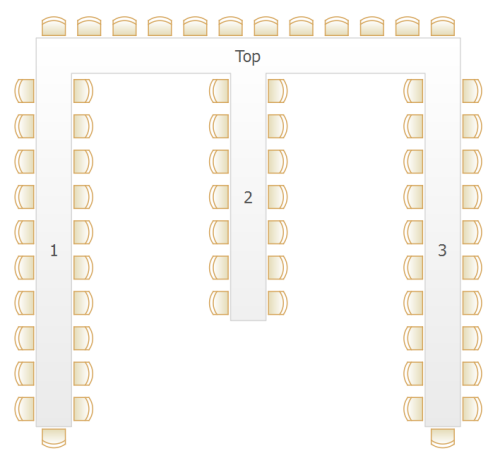
PerfectTablePlan can also handle an E-shaped table with no central sprig.
Note:
- tables can be moved by dragging, and rotated using Edit>Rotate
- if you need a rectangular table with seats on 3 sides, use a 'custom' table
Q. Does PerfectTablePlan support curved/serpentine/C-shaped tables?
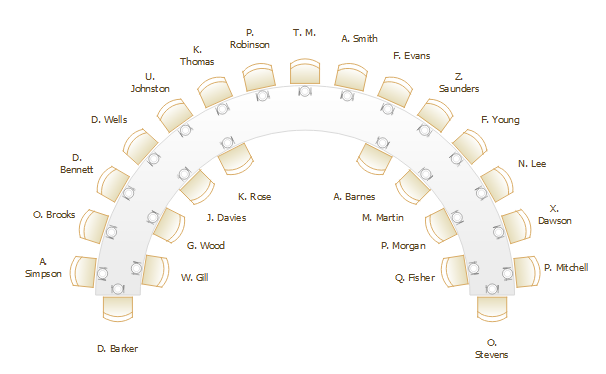
Yes. PerfectTablePlan Advanced and Professional editions have 90 and 180 degree serpentine table types.

180 degree serpentine tables

90 degree serpentine tables
Q. Does PerfectTablePlan support horseshoe-shaped tables?
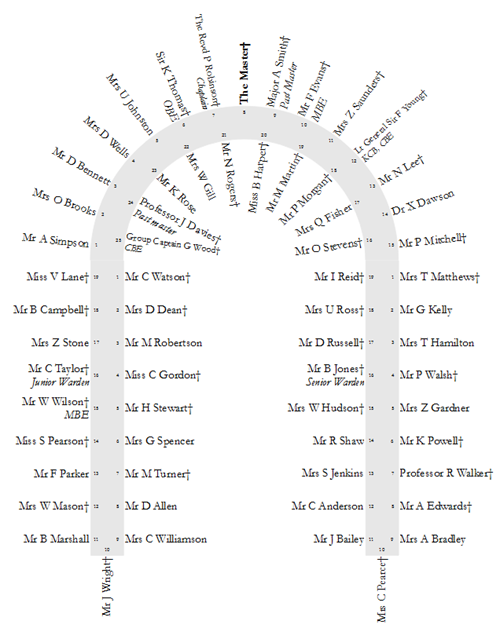
Yes. PerfectTablePlan Advanced and Professional editions have a serpentine table type, which can be combined with custom tables to create a horseshoe-shaped table. See also the horseshoe-shaped table sample shipped with PerfectTablePlan.
Q. Does PerfectTablePlan support round-ended tables?
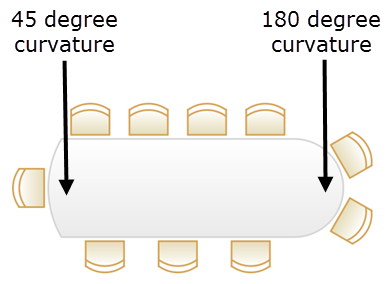
Yes. The custom table type has an option to have 1 or 2 rounded ends.
Q. Does PerfectTablePlan support triangular table layouts?
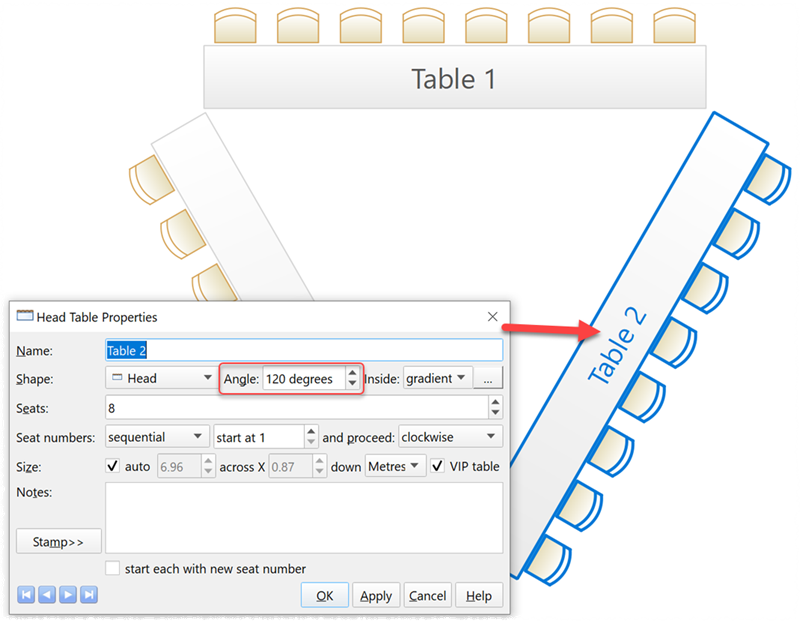
Yes. You can lay out head, banquet or custom tables at 0, 120 and 240 degrees to create a triangular table layout.
Q. Does PerfectTablePlan support oval tables?
Yes.

Q. Does PerfectTablePlan support semi-circular tables?
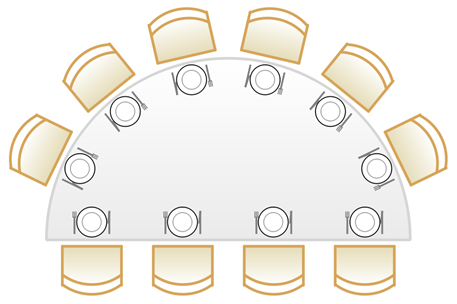
Yes.
Q. How many guests can PerfectTablePlan handle?
There is no hard upper limit on the number of guests. Customers have successfully used PerfectTablePlan for events with over 4,000 guests. However, if you use the automatic seat assignment, the time required does go up considerably with the number of guests - this is in the nature of combinatorial problems. If you have more than 1,000 guests you might need to take a tea/coffee break if you run the automatic seat assignment. If that seems a little slow, imagine how long it would take you with scraps of paper!
Q. What upgrades am I entitled to when I purchase a licence key?
A version X licence key is valid for all version X releases of the software. For example a version 7 licence key will work for versions 7.0.0 and 7.1.0 of the software. If we make a new major release within 3 months of your purchase, we will upgrade your licence key to the next major version for free. If we make a new major release more than 3 months after your purchase you will be able to upgrade at a discounted price.
If you want to be informed of future versions you should subscribe to our newsletter.
Q. How does the automatic seat assignment work?
There are 3 automatic seat assignment modes: by guest proximity, by guest order of precedence and random.
The automatic layout by proximity tries to seat each guest according to their preferences (who they want to sit near to, or not near to). It uses a scoring approach to determine how good an assignment is and a genetic algorithm to try to find the best one. Because of the vast numbers of possible seating layouts it cannot be guaranteed to find absolutely the best (highest scoring) layout. However it will usually get quite close very quickly.
Q. Is PerfectTablePlan available for Windows?
Yes! PerfectTablePlan v7 supports Windows 11/10.
Versions of Windows 10 that have not been updated since Oct-2018 are not supported.
Q. Is PerfectTablePlan available for 64 bit Windows?
Yes! PerfectTablePlan is a 64 Windows application from v6.2.1. Earlier versions are 32 bit applications, but should also run fine on 64 bit Windows.
Q. Is PerfectTablePlan available for 32 bit Windows?
PerfectTablePlan is a 64 bit application from v6.2.1 and will not run on 32 bit versions of Windows. However all versions of PerfectTablePlan before v6.2.1 are 32 bit applications and will run on 32 or 64 bit windows.
Q. Is PerfectTablePlan available for PCs with ARM processors?
PerfectTablePlan v7 should run on ARM-based PCs with Windows 11. Download a free trial to check. PerfectTablePlan v7 will not run on ARM-based PCs with Windows 10.
Q. Is PerfectTablePlan available for Microsoft Surface?
PerfectTablePlan v7 should run on Surface devices with Windows 11. Download a free trial to check. PerfectTablePlan will not run on the Windows RT.
Q. Is PerfectTablePlan available for Mac?
Yes! PerfectTablePlan 7 supports macOS 26 to 11.x, ARM & Intel.
Q. Is PerfectTablePlan available for M series (ARM) Macs?
Yes! PerfectTablePlan v6.2.1 onward is a Universal binary, containing both ARM and Intel binaries. PerfectTablePlan v6.1.2 to v6.2.0 contain just Intel binaries, but should work OK on ARM chips using Rosetta2 emulation. PerfectTablePlan v6.1.1 or earlier may not work correctly on ARM Macs. If you have v6.1.1 or earlier you should download the latest version.
Q. Is PerfectTablePlan available for Intel Macs?
Yes! PerfectTablePlan v6.2.1 onward is a Universal binary, containing both Intel and ARM binaries. PerfectTablePlan v6.2.0 and before contain just Intel binaries.
Q. Is PerfectTablePlan available for iPad/iPhone/Android/Chromebook?
No. However from PerfectTablePlan on Windows or Mac you can:
- export to web and access this using a web browser on your device
- export to PDF and share these with your device by email, DropBox or other methods.
Another approach is to use the free LogMeIn iPad app to access PerfectTablePlan on your PC or Mac from your iPad.
Q. Is PerfectTablePlan available for Linux?
No. We have been informed that it runs fine under WINE, but we haven't tested for this and recommend you try it yourself before purchasing.
Q. How do I decide who to put next to who?
That depends on what sort of event you are organizing. Check our tips pages.
Q. How do I transfer PerfectTablePlan from one machine to another?
To transfer PerfectTablePlan from one machine to another (e.g. work PC to home PC or an old PC to a new one):
- Install the software on the new machine from our download page (if your key is not for v7 you can download older versions of PerfectTablePlan here).
- Transfer your licence key to the new machine, either by: forwarding the original licence key email; or copying the licence key from the Licence window on the original machine (select Licensing>Licence from the main menu) and emailing it; or retrieving it from our key retrieval page
- Re-enter it in the Licence window of the new machine.
- From PerfectTablePlan v7.1.0 you can transfer Preferences from one machine to another by exporting a .tpp file from Preferences>Transfer of the old machine and importing it from Preferences>Transfer of the new machine. This saves having to re-enter Terms, Titles, Suffixes etc.
See also copying plan files. Note that PerfectTablePlan is licensed per person and it is ok to have it installed on up to 5 computers, for your own use. See licensing for more details.
Q. Can PerfectTablePlan help with social distancing?
Yes! For more details please see our socially distanced seating page.
Q. Can I buy PerfectTablePlan on CD?
No. We no longer sell CDs. But you can download the PerfectTablePlan installer from our website and burn your own CD.
Q. What languages is PerfectTablePlan available in?
PerfectTablePlan is currently only available in English. However the software is fully Unicode enabled, so it can handle a wide range of non-English characters. Also you can change any of the words that appear inside the Guest chart, Table plan or Report panes, e.g. you can change the column headers in the Guest chart pane into German, French or Spanish equivalents.
Q. How do I copy a plan from one machine to another?
Your plan (including images) is contained in a single text (XML) file, with the extension .tp. You can copy a plan file from one machine to another by:
- attaching it to an email; or
- via a shared/networked disk drive; or
- via a USB memory stick
You can even move a plan file from Windows to Mac (or vice versa) without problems. Select File>Find... in PerfectTablePlan to search your harddisk for plan files. See also: How do I share a single plan file between multiple computers/users?
Q. Why do I see "Action cancelled" when I try to access the online help in Windows?
A Microsoft security fix prevents HTML based help being accessed from network drives. To avoid the problem you can:
- reinstall PerfectTablePlan on a local drive; or
- use our online help instead; or
- apply the fix described here (at your own risk)
Q. Can PerfectTablePlan be used for optimization problems not related to seating, e.g. assigning golf fours?
PerfectTablePlan was designed to solve seating problems for events, particularly events where people are seated around tables. However it can be used to solve many of other types of combinatorial grouping problems. For example, if you want to assign people to golf fours according to their preferences you can use PerfectTablePlan:
- set guest RSVP status according to whether they have 'accepted' or 'declined'
- set 'next to' proximity for guests who you strongly want to group together
- set 'near to' proximity for guests who you less strongly want to group together
- set 'not near to' proximity for guests who you strongly don't want to group together
- set 'not next to' proximity for guests who you less strongly don't want to group together
- create a 4 seat table for each golf four
- run the automatic seat assignment
- drag and drop to fine tune the solution, if required
- print the results from the Guest chart pane (if you want it by guest) or Table chart pane (if you want it by golf 4)
you can use the Terms tab in the Preferences window to remove any references to 'Table' or 'Seat' in charts and reports.
Q. Is PerfectTablePlan available in my web browser?
A. No. PerfectTablePlan is a native desktop application for Windows or Mac. It is not a 'cloud' application. This means that you have to install it on each computer that you want to use it on. But the installation is very quick and there are significant advantages to native applications, including:
- a richer and more responsive user interface
- no dependence on our servers (you can carry on using PerfectTablePlan indefinitely, even if we go out of business)
- no need to transmit and store potentially sensitive information via the Internet
Furthermore PerfectTablePlan has the ability to export to web. Allowing you to access (but not edit) your plan on any device with a web browser.
Q. How do I share a single plan file between multiple computers/users?
A. There are various different ways you can share a plan file between multiple computers with one or more users. Which is best depends on your circumstances:
| Approach | Advantages | Disadvantages |
| Copying plan files backwards and forwards by email attachment | No effort to set up. | Time taken to email plans. Requires careful coordination if more than one person is editing a plan. You have to be careful not to lose changes by copying an old file over a new one. |
| Storing the plan file on a USB memory stick | No synchronization problems. | Requires a USB memory stick. Only one person can be accessing the plan at any time. |
| Shared network drive. | On Windows a plan will be locked when one user has it open to read. Other users will only be able to open it as 'read only', preventing conflicting changes. You will be notified if your 'read only' plan is updated by another computer. | Requires access to a shared network drive. File locking can be restrictive when you have multiple users trying to access a file. File locking is not supported on the Mac version of Perfect Table Plan. |
| Store your plan in Dropbox, synchronised across all your machines. | Changes on one machine are automatically synched to all other machines. Conflicts (.e.g. two users making changes to the same file at the same time) are handled automatically. Easily manage sharing with other users on a plan by plan basis. You can still access your plan even if you have no Internet access. Dropbox keeps a 1 month history of changes and allows edits and deletions to be undone. Works across Windows and Mac. | Requires a small amount of effort to set-up. Changes only sync to other machines when you have Internet access. If 2 users simultaneously edit the same plan on different machines at the same time you will end up with 2 versions of the plan. An encrypted copy of your data is transmitted to and stored on the Dropbox server. This may not be appropriate for highly confidential plans. Dropbox requires a payment if you want to store more than 2GB of file. |
Dropbox is our preferred approach. It works really well, even for multiple users across multiple computers, and it is easy to set up and (in most cases) free. Note that you need a licence key for each PerfectTablePlan user.
Q. How do I install a version upgrade?
On Windows the installer installs over any previous version 7 folder. However you can choose to install to a different folder if you want to have more than one version installed.
On Mac the .app file install over the previous .app file, by default. However you can rename the .app files if you want to have more than one version installed.
If you have previously added a valid licence key to your computer you shouldn't have to add it again for a minor upgrade.
Q. How do I get PerfectTablePlan to start when I double click on a plan file?
You need to associate plan files with the appropriate PerfectTablePlan program. This is normally done for you during installation. But you can also do it yourself.
For Windows:
- Right click on a plan file (extension .tp).
- Select Properties.
- Click on the Change... button next to Opens with.
- Click on Browse....
- Navigate to
C:\Program Files \PerfectTablePlan7\PerfectTablePlan.exe and click Open. - Click OK.
- Click OK.
For Mac see How can I change what program opens a certain file on a Mac?
Q. What formats is the installer available in?
The Windows installer is available as a .exe file and as a .zip file. We don't have a .msi installer, but we understand it is possible to repackage the .exe as a .msi using EMCO MSI Package Builder.
The Mac installer is available as a .dmg file.
Q. Can PerfectTablePlan be deployed via Windows Terminal Server/Citrix?
PerfectTablePlan for Windows is a standard Win64 executable like Excel or Word, so it shouldn't be a problem. We haven't tried it ourselves, but customers have told us that it works fine.
Q. Can I uninstall old versions of PerfectTablePlan?
Versions installed to different folders (Windows) or different .app files (Mac) can be uninstalled separately. But note that the PerfectTablePlan install is quite small (about the same as a few digital photos), so even multiple versions won't use a lot of disk space.
Q. What is the ECCN for PerfectTablePlan?
The Export Control Classification Number (ECCN) for PerfectTablePlan is EAR99 (encryption functionality limited to intellectual property or copyright protection functions).
Q. I get a 'No printer detected' message. I can see printers in my Windows Control Panel. Why can't PerfectTablePlan see them?
There may be a problem with the Windows registry entry. This can sometimes be fixed by installing a new printer (e.g. a virtual printer, such as PDF creator) or removing and reinstalling an existing printer. If your printer has more than one driver, try choosing the Postscript driver. All such changes are at your own risk.
Q. What is the difference between Home, Advanced and Professional editions?
The 3 different editions have different levels of features.
Q. Can people with different editions share plan files?
Yes, but you need to be careful if you are reading in a plan from a higher edition of PerfectTablePlan. For example, if you save a plan with 5 custom fields in PerfectTablePlan Professional edition and then open it in PerfectTablePlan Advanced edition, then only 2 of those custom fields will be kept (you will be warned of this). If you then save the plan from the Advanced edition, the other 3 custom fields will be lost. So we don't really recommend mixing different editions of PerfectTablePlan in the same organization.
Q. I still can't find the answer to my question. How do I get help?
Please contact support.