|
The following enhancements have been made since version 4.0.3:
Windows and Macintosh
All editions
Editions
1. PerfectTablePlan has been renamed PerfectTablePlan Home Edition. Any licence key that worked for PerfectTablePlan v4.0.x will work for PerfectTablePlan Home Edition.
As previously announced in our December 2008 and April 2009 newsletters, there are also two new products: PerfectTablePlan Advanced Edition and PerfectTablePlan Professional Edition. The new editions have additional features (see below for more details) You can switch between the different editions in the Preferences window. However please note:
- if you switch to a lower edition you will loose data items that are only available in the higher edition
- if you switch to a higher edition than you have a licence for you will be in trial mode (you can’t print, save or export plans with >30 guests) until you switch back
[Added in v4.1.0]
Operating systems
2. PerfectTablePlan now supports Windows 7 and Mac OS X 10.6 in addition to existing OSs Windows 2000, XP and Vista + Mac OS X 10.3.9, 10.4.x and 10.5.x. [Added in v4.1.0]

Importing
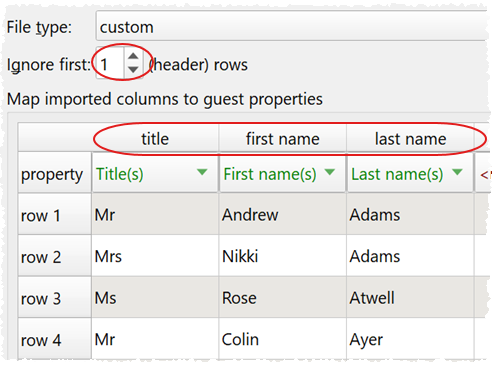
3. You can now split and join columns in the Import window.


The imported file is not affected.
You can do multiple split and join operations to get columns into an appropriate format. For example, you could split a column with “John Smith,Director of Finance” into 2 columns “John Smith” and “Director of Finance” and then join them back as “John Smith**Director of Finance”. This is much easier than doing it in Excel. You need to click on the More/Reveal button to see this option. [Added in v4.1.0]
watch a short video clip showing this new feature (flash format, with audio)
4. You can now use “+ <number>” in the Full name(s) column of the Import data window or in the Quick add guests window to add anonymous guests. [Added in v4.1.0]

5. In the absence of a ‘group’ column previous versions of PerfectTablePlan automatically imported consecutive guests with the same last name into the same group. This works well for family events, but less well for business events. You can now disable this functionality by unchecking the group consecutive guests with same last name check box in the Import data window. You need to click on the More/Reveal button to see this option. [Added in v4.1.0]

6. If you imported a name containing “&”, “+” or “and” (e.g. imported “Mr & Mrs J Smith”) into the Full name(s) field) into previous versions of PerfectTablePlan it automatically assumed the record contain more than one guest. You can now force it to import the record as a single guest by checking the single guest per row check box in the Import data window. You need to click on the More/Reveal button to see this option. [Added in v4.1.0]
7. Multiple columns can now be imported into the guest Notes field. [Added in v4.1.0]
8. When importing full names PerfectTablePlan now guesses that “von”, “van”, “da” etc are part of the guest’s last name, not part of their first name e.g. “Johannes Diderik van der Waals” will be broken into first names “Johannes Diderik” and last names “van der Waals” (not first names “Johannes Diderik van der” and last names “Waals”, as previously). [Added in v4.1.0]
9. You can now delete multiple selected rows or columns in the Import data window (previously they could only be deleted one at a time). [Added in v4.1.0]
10. There is now a standard import mapping for the Summit Software event planner. [Added in v4.1.0]
Floor plan & Table plan panes
11. You can now select multiple items in the Floor plan and Table plan panes. Use Ctrl+click to select/unselect multiple items. [Added in v4.1.0]
watch a short video clip showing this new feature (flash format, with audio)
12. You can now search the Floor plan. Items with text that matches the selected text are highlighted, regardless of case. [Added in v4.1.0]

watch a short video clip showing this new feature (flash format, with audio)
13. You can now set proximity by guest in the Floor plan and Table plan panes. [Added in v4.1.0]
14. A View>Show selected in menu item has been added. This allows you to select an item (or items) in one page and highlight it in another pane. For example, if the Guests and Floor plan panes are visible you can select 2 guests in the Guests pane and highlight them in the Floor plan pane by select View>Show selected in>Floor plan pane (or Ctrl+D). [Added in v4.1.0]
watch a short video clip showing this new feature (flash format, with audio)
15. If you are displaying the Floor plan pane with grid lines, the grid lines are now shown when you print/export. Note that a large number of grid lines can slow down printing. You can hide grid lines in the Dimension window. [Added in v4.1.0]
16. Text items added to the Floor plan pane now default to the same rotation, font and colour as the previously added text. This makes adding multiple items of text more convenient. [Added in v4.1.0]
17. Unassigned seats are now shown with a cross through them when you set the Tables drop-down list at the top of the Floor plan pane to Unassigned. Previously this only worked for Name+unassigned. [Added in v4.1.0]
18. Items added to the Floor plan pane are now selected. This makes newly added items easier to distinguish from existing items. [Added in v4.1.0]
19. The default colours have been improved.
Guests and groups
20. Anonymous guests are now fully supported.

The name of an anonymous guest is, by default, “<group name> guest”. However you can change this in the General tab of the Preferences window. [Added in v4.1.0]

watch a short video clip showing this new feature (flash format, with audio)
21. You can now right click on a group in the Groups pane and select Insert guest into group.

This is equivalent to (but more convenient than) selecting Insert>Single guest and then changing the group to an existing one in the Group tab. [Added in v4.1.0]
22. The automatic capitalisation of guest names is now turned off by default. To enable it go to the Preferences window. [Added in v4.1.0]
Other
23. A Terms tab has been added to the Preferences window. This allows you to change any of the words that appear inside the Table plan, Guest chart or Report panes.

This should be particularly useful for non-English customers. The user interface of PerfectTablePlan is not affected. [Added in v4.1.0]
watch a short video clip showing this new feature (flash format, with audio)
24. A Edit>Select all menu item has been added. This selects all items in the current pane. [Added in v4.1.0]
25. A File>Page setup menu item has been added. This allows you to change paper size or other printer options, the same as pressing the Setup button in the Print window. [Added in v4.1.0]
26. The fields used to set the room size and chair size in the Dimensions window have been improved. [Added in v4.1.0]
27. The default Seat width in the Floor plan dimensions window has been changed from 0.8 metres/2.62 feet to 0.87 metres/2.85 feet. This gives closer to industry standard sizes for round tables. This only affects new plans. [Added in v4.1.0]
28. Guest names can now be displayed in additional format Last,Title First. The various formats are now listed in alphabetical order (e.g. in the Display drop-down list of the Floor plan pane). [Added in v4.1.0]
29. There are some improvements to the automatic seat assignment, resulting in better and/or faster seat assignments. [Added in v4.1.0]
30. Additional stationery substitution text {guest_meal_multi_line} has been added. This allows you to display courses that has been separated by commas (e.g. “soup, fish, flan”) on separate lines. [Added in v4.1.0]

31. The default setting for the For drop-down list in the Guest chart pane has been changed to All. [Added in v4.1.0]
32. VIPs are now ordered before non-VIPs when listed within a group, for example in the Guest chart pane with By set to Group. [Added in v4.1.0]
33. The Insert guests scratch-pad window has been renamed to the Quick add guests window. [Added in v4.1.0]
34. The Statistics pane has been renamed to the Report pane. [Added in v4.1.0]
35. The date and time of creation has been added to the summary report in the Report pane. [Added in v4.1.0]
36. The settings of the Proximity pane are now remembered when you re-open a plan. [Added in v4.1.0]
37. The More/Reveal button has been moved from the right to the left of each pane, to make it more visible. [Added in v4.1.0]
38. Balloon tips appear. These are intended to prompt new users. Each tip only appears once for 10 seconds and you can dismiss them by clicking on them. [Added in v4.1.0]

39. Added some extra levels of hierarchy to the help documentation. [Added in v4.1.0]
40. Updated the sample themes to include gradients. [Added in v4.1.0]
41. Added a Default button in the Table properties window so that the table colour can easily be set back to the default. The button is hidden if the default is already set. [Added in v4.1.0]
Advanced & Professional editions
Custom fields
1. You can now define your own fields to be associated with each guest via Edit>Custom fields.

Custom fields can be of 6 possible types.
|
Field type
|
Allowed values
|
Example usage
|
|
Yes/No
|
Yes or no
|
In a wheelchair?
|
|
Text
|
Any text
|
Job title
|
|
Number
|
Any whole number (integer)
|
Number of tickets ordered
|
|
Currency
|
Any floating point number (accurate to 2 decimal places)
|
Amount owing
|
|
Selection
|
One of a list
|
Employer
|
|
Tags
|
0, 1 or many comma separated items
|
Languages spoken
|
|
Custom fields can be: imported, displayed in Guests, Groups, Floor plan, Table plan, Table chart, Guest chart, Stationery and Report panes and exported.

Up to 2 custom fields are allowed per plan in the Advanced Edition. [Added in v4.1.0]
watch a short video clip showing this new feature (flash format, with audio)
Importing
2. When you import a file you will be given the option to save the import mapping for use another time. This can be very useful if you regularly import spreadsheets/files whose format is not included in our standard File type list. [Added in v4.1.0]

Floor plan pane
3. Images can now be added to the Floor plan pane. The images are saved inside the plan file, so the plan can be easily moved between machines. Images can be rotated and scaled. PNG and JPEG images formats are supported. [Added in v4.1.0]

watch a short video clip showing this new feature (flash format, with audio)
4. An images can now be added as background to the Floor plan pane via the Dimensions window. If have a scale image of the venue you set it to the correct size and place your tables on top of it. The image is saved inside the plan file, so the plan can be easily moved between machines. PNG and JPEG image formats are supported. [Added in v4.1.0]
|
|
|
|
Scaled floor plan image
|
Image added as background to Floor plan pane
|
|
watch a short video clip showing this new feature (flash format, with audio)
Stationery pane
5. Images can now be added to stationery. The images are saved inside the plan file, so the plan can be easily moved between machines. PNG and JPEG images formats are supported. [Added in v4.1.0]

watch a short video clip showing this new feature (flash format, with audio)
Clipart
6. Some clip art is now installed with PerfectTablePlan. [Added in v4.1.0]
Other
7. An additional sample plan called ‘advanced_sample_v9.tp’ has been added. It illustrates some of the additional features of the advanced and professional editions. [Added in v4.1.0]
Professional edition only
Unique IDs
1. All the objects stored in the plan file (guests, groups, tables etc) now have a globally unique identifier. This makes it easier to integrate PerfectTablePlan with other applications, as you can import guests, change various attributes, export them and still be able to associate the guests exported with the guests imported. PerfectTablePlan uses GUIDs by default, but it can handle alphanumeric identifiers of any length. [Added in v4.1.0]

Custom fields
2. Up to 20 custom fields are allowed per plan in the Professional edition. [Added in v4.1.0]
3. You can now define proximity using Yes/No and Selection custom fields. For example you can have a Yes/No custom field ‘Smoker’ and set the proximity so that smokers and non-smokers are kept apart.

This is a powerful feature and you can use it in all sorts of ways. For example you could have a Selection custom field that specifies which organization each person belongs to. You could then set the proximity for this custom field to:
- seat people from the same organization together; or
- seat people from the same organization apart; or
- seat people from certain organizations apart and others together
[Added in v4.1.0]
watch a short video clip showing this new feature (flash format, with audio)
Importing
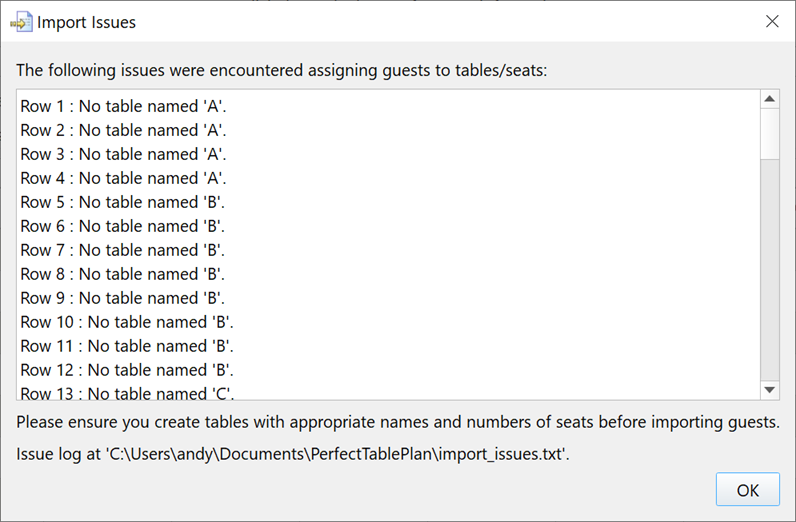
4. You can now import table/seat data. This can be very useful if you are importing a seating plan created by another software package. If you only import the table name/number the guest will be assigned to a random seats. Note that a table with the appropriate name and number of seats must already exist in your plan. [Added in v4.1.0]

watch a short video clip showing this new feature (flash format, with audio)
5.There is now a standard import mapping for PerfectTablePlan professional edition. It includes the ID, table and seats columns exported. [Added in v4.1.0]
Reporting
6. Detailed reports are now available. You can choose:
- which guest field to report (e.g. meal choice)
- how to group the report (e.g. by table)
- which guests to report on (e.g. assigned guests only)
- whether to display guest names or total numbers
For example you can create reports for:
- special requirements by group
- total numbers by age and gender
- total amount paid by table (using a custom field of type ‘currency’ for the amount paid)
- number of guests by organization (using a custom field of type ‘selection’ for the organization)
[Added in v4.1.0]
watch a short video clip showing this new feature (flash format, with audio)
|