PDF is a vector image format popularised by Adobe Acrobat. Many print shops will prefer PDF format if you want to print the  Floor Plan,
  Table Chart ,
  Guest Chart or
  Stationery pane to poster size. For example, to export the Floor Plan pane as a PDF:
1.Select File>Export, the  Export window will appear.
2.Select floor plan to PDF/PNG/JPG/WEBP/BMP image file.
3.Click OK, the Export Floor Plan window will appear.
4.Select the file type as PDF, choose a file name and location and click Save, the Export PDF window will appear.
5.Select the appropriate Size and Orientation for the PDF and click OK.
If you have problems with built-in PDF export you can also export PDFs indirectly, as described below.
Creating PDFs indirectly on Mac
The ability to print straight to a PDF document is built into Mac, you don’t need to install any additional software.
1.Select File>Print, the PerfectTablePlan  Print window will appear.
2.Click the Setup... button, the Mac Print window will appear.
3.Drag the PDF button down to Save as PDF....
4.Choose a location for the file in the Save window and click Save, the Print Setup window will appear.
5.Choose the print setup and click OK.
6.Click OK on the PerfectTablePlan Print window.
A PDF format document should now have been created.
Checking the output
You can check that the PDF output is acceptable using the free Adobe Acrobat reader. Many web browsers can also read PDF files.
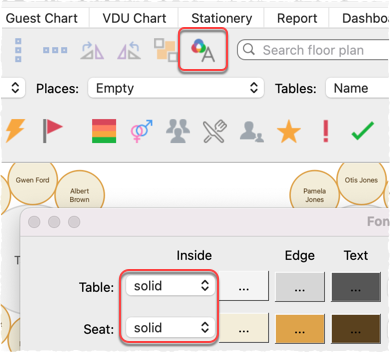
Note that there is a long standing bug in the Mac Preview application, which means it does not display PDF colour gradients correctly. For example, a plan that should be displayed like this:
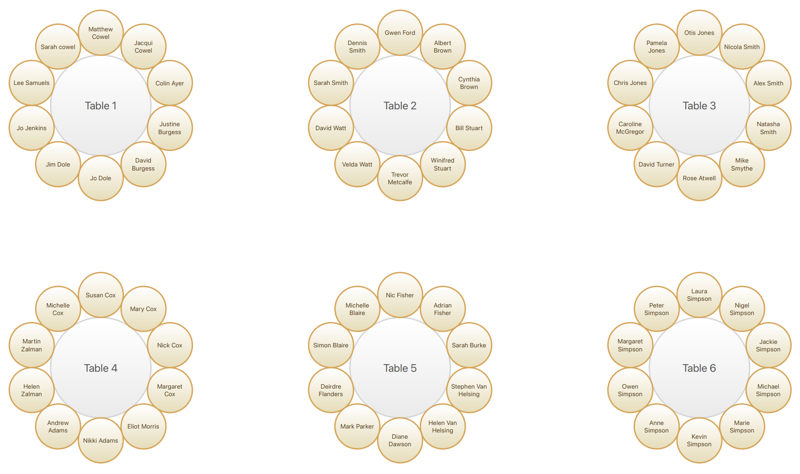
Will appear in the Mac Preview application like this:
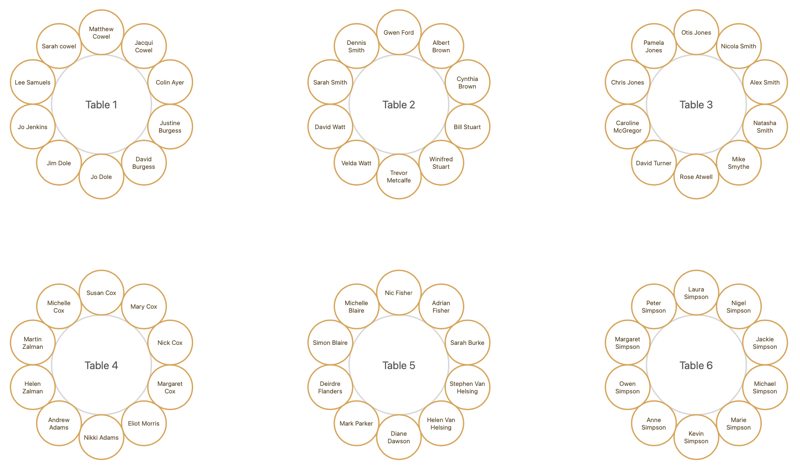
There is nothing wrong with the PDF. You can avoid this issue by previewing the PDF in another application (e.g. the Chrome browser) or changing all the gradients to flat colours: